Credential Manager & Keychain Explained — How Passwords Are Stored Securely
Your phone and computer already contain protected stores for passwords, passkeys, certificates, app secrets, and network logins. This guide explains what those stores protect, where their limits begin, and how to build a safer recovery plan around them.
Credential managers and keychains are operating-system vaults for sign-in material. Apple Keychain, Android Credential Manager, and Windows Credential Manager reduce the need for apps to save secrets in exposed files. They are safest when paired with a strong device lock, unique passwords, passkeys or MFA, and a separate encrypted record of recovery codes.
A practical route through credential security
Start with the platform you use, then review the password, MFA, recovery, and USB key sections.
Three security questions that need precise answers
Are Passwords Stored Securely Windows Remote Desktop for Windows 10?
Windows can protect saved Remote Desktop credentials through its credential systems, but safe use also depends on endpoint security, organizational policy, malware protection, and the remote host. Managed environments should evaluate Credential Guard and Remote Credential Guard rather than relying only on saved passwords.
Memorized Secrets, Like Passwords and Passphrases, Should Be Stored Securely Using a Hash.
Correct for a service verifying user passwords. The verifier should store a unique salt and a deliberately expensive password hash, not reversible plaintext. A personal password manager is different because it must decrypt saved credentials after the user unlocks the vault.
How Do You Ensure Monitored Data is Stored Securely?
Collect less, encrypt data in transit and at rest, isolate keys, restrict access, keep audit logs, set retention limits, test backups, and document secure deletion. Monitoring data can contain credentials, tokens, personal identifiers, and private activity.
A credential store is one layer, not your whole security plan
A credential is information that helps prove identity or authorize access. It may be a password, passkey, certificate, private key, network login, app token, or a protected reference to one of those items. A keychain or credential manager gives the operating system a controlled place to store and release that information.
The store normally encrypts its database and ties access to your signed-in device account, screen lock, hardware-backed security, or an app permission. This is much safer than letting every app invent its own password file, but it does not protect an already-unlocked session from every threat.
Think in layers: secure the device, secure the account, use unique credentials, add phishing-resistant authentication where possible, and keep recovery information in a separate encrypted location.
credential store
My situation is...
Choose the problem closest to yours. The page will keep the most relevant starting points visible.
My Mac keeps asking for Keychain access
Check which app is requesting access, whether the item belongs to it, and whether your login keychain password still matches your Mac login password.
Go to Mac fixes →I forgot an account password
Use the official recovery path, trusted devices, recovery codes, and verified support. Do not use credential-dumping or bypass tools.
Go to recovery steps →We share accounts at home or work
Move away from shared passwords. Use individual accounts, delegated access, family or team vaults, and a documented emergency-access process.
See the checklist →I want to turn a USB drive into a security key
A normal flash drive cannot become genuine FIDO2 hardware. Use a certified key for authentication or encrypt the flash drive for recovery files.
Understand the difference →Apple Keychain, Android Credential Manager, and Windows Credential Manager
Apple Keychain
Keychain Access on macOS stores passwords, certificates, private keys, secure notes, and other protected items. iCloud Keychain can synchronize supported passwords and passkeys across trusted Apple devices. Apple states that iCloud Keychain data is end-to-end encrypted, which means Apple does not hold the keys needed to read those items.

Can't turn on iCloud Passwords and Keychain
- Confirm that the device is signed in to the intended Apple Account.
- Update the device and verify that two-factor authentication and a device passcode are enabled.
- Check whether account recovery or managed-device restrictions are blocking the change.
- Do not reset or delete a keychain until you understand which local items may be lost.
Chrome Safe Storage Keychain
On macOS, Chrome uses a Keychain item named Chrome Safe Storage as part of protecting locally stored browser data. An unexpected prompt should be checked carefully. Confirm that the requesting app is Google Chrome from the expected location before allowing access.
“codesign wants to access key Apple Development in your keychain”
This can be legitimate during app signing, but approval grants access to a private signing key. Confirm the command, developer tool, project, and certificate name. Choose the narrowest approval available and investigate repeated prompts.
open -a "Keychain Access"- Deep OS integration
- Passkey support
- End-to-end encrypted iCloud Keychain sync
- Best inside the Apple ecosystem
- Recovery planning is essential
- App prompts still require judgment
Android Credential / Keychain
Android's modern Credential Manager gives apps a unified way to request passwords, passkeys, and federated sign-in options from installed credential providers. Developers may also use Android Keystore for cryptographic keys and the older KeyChain API for user-selectable certificates and private keys.
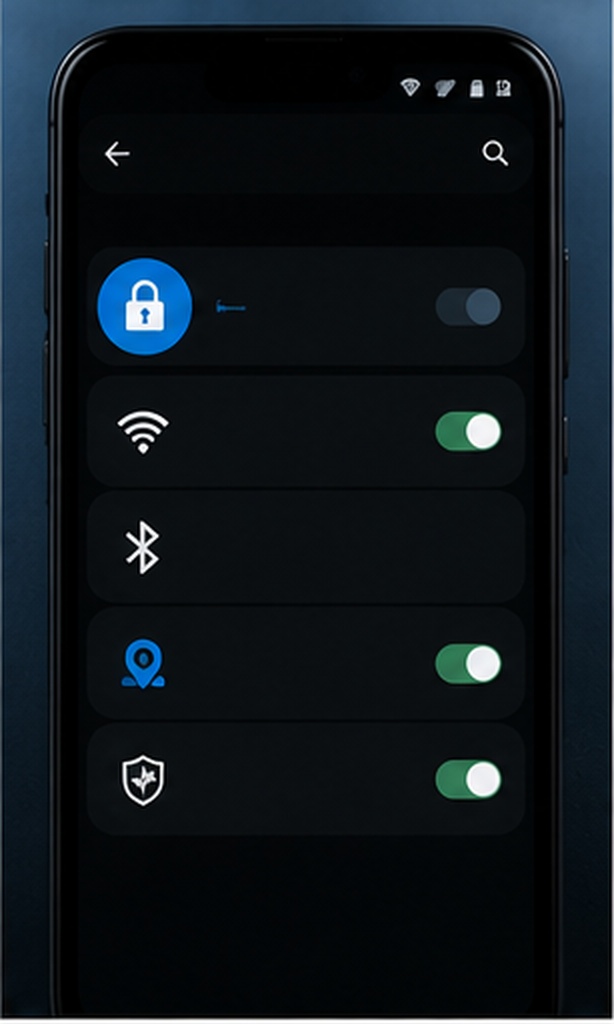
What is com.android.keychain?
It is a system component related to certificate and credential handling on many Android builds. Its presence alone is not evidence of malware. Do not disable system components simply because their package names look unfamiliar.
Apple Keychain on Android
Apple does not provide the same system-wide iCloud Keychain experience on Android that it provides on Apple devices. For cross-platform use, choose a password manager or credential provider that supports both ecosystems, then test export, recovery, passkey support, and account security before migrating.
Android keychain example
A banking app may ask Android Credential Manager for a passkey. Android presents available credentials from approved providers, the user unlocks one with the device screen lock, and the app receives a signed authentication response rather than the user's private key.
- Unified sign-in experience
- Supports passwords and passkeys
- Can work with multiple providers
- Behavior varies by Android version and vendor
- Provider quality matters
- Old apps may use older APIs
Windows Credential Manager
Windows Credential Manager lets you view and delete credentials saved for websites, connected applications, networks, and Windows services. It separates Web Credentials from Windows Credentials and may also show generic credentials created by applications.
How do I find my Windows security network credentials?
Open Credential Manager and review Windows Credentials. Windows may let you inspect the saved username and target, but it does not provide a legitimate method to reveal every protected secret in plaintext. If you no longer know a password, reset it through the account or network owner.
control.exe /name Microsoft.CredentialManagerAre passwords stored securely for Windows Remote Desktop?
Saved RDP credentials benefit from Windows credential protections, but a compromised endpoint, unsafe policy, or malicious remote host can still expose sessions or derived credentials. For managed systems, Microsoft documents Credential Guard and Remote Credential Guard as stronger controls for reducing credential exposure.
- Built into Windows 10 and 11
- Central place to remove stale entries
- Useful for networks and connected apps
- Not a full cross-platform password manager
- Endpoint compromise remains a risk
- Enterprise policies can change behavior
Password Manager vs Browser Password Storage
Browser storage is convenient and often integrates with the operating system, synchronization account, and passkeys. A dedicated password manager usually offers broader cross-browser support, richer sharing controls, emergency access, secure notes, policy tools, and more deliberate separation from the browser session.
Neither choice is automatically safe. Review how the provider encrypts data, what can be recovered by the company, how new devices are approved, whether account takeover can expose the vault, and whether you can export your data in a usable format.
Windows Credential Manager vs macOS Keychain vs iOS Keychain
| Platform store | Common items | Sync model | User control | Best use | Main limitation |
|---|---|---|---|---|---|
| macOS Keychain | Passwords, certificates, private keys, secure notes, app secrets | Local keychains plus optional iCloud Keychain | Keychain Access, access-control prompts, device authentication | Apple-device credentials and developer certificates | Cross-platform workflows may need another manager |
| iOS/iPadOS Keychain | Passwords, passkeys, Wi-Fi credentials, app secrets | iCloud Keychain across trusted Apple devices | Passwords app/settings, device passcode, Face ID or Touch ID | Consumer passwords and passkeys in Apple ecosystem | Recovery must be planned before devices are lost |
| Android Credential Manager | Passwords, passkeys, federated sign-in options | Depends on selected credential provider | Provider settings, device screen lock, app consent | Unified sign-in across Android apps and websites | Experience varies by version, vendor, and provider |
| Windows Credential Manager | Web, Windows, network, app, and generic credentials | Primarily tied to Windows and participating apps | Credential Manager Control Panel and account policy | Network shares, apps, websites, and RDP-related entries | Not designed as a complete family or cross-platform vault |
| Editorial verdict | Use each native store for its platform integrations. Add a dedicated password manager when you need cross-platform access, sharing, emergency planning, or a single account inventory. | ||||
Length, uniqueness, and storage matter more than clever substitutions
A strong password is unique to one account and long enough to resist practical guessing. A memorable passphrase can be suitable for a master password. Randomly generated credentials are better for sites because a password manager can remember them.
Avoid predictable patterns, keyboard walks, names plus dates, repeated company names, and small variations of an old password. Change a strong password when compromise is suspected, a service reports a breach, the password was shared, or an administrator requires a justified rotation.
User input
Different per account
Stored verifier
How password hashing works
A website should not need to decrypt your password. Instead, it applies a password-hashing function to your submitted password and a unique salt, then compares the result with the stored verifier. A high work factor makes each offline guess more expensive if the database is stolen.
Credential security lab
Test a made-up password locally in your browser, score your setup, compare authentication methods, and create a safer next-step plan. Nothing entered here is transmitted or stored.
Password strength tester with entropy calculation
Use a made-up example, not a real password. The estimate is educational and cannot account for every pattern or breach.
Password audit quiz: how secure is your current setup?
Creates a plain-text checklist locally in your browser.
Authentication method security quiz
2FA method comparison
| Method | Phishing resistance | Convenience | Recovery concern | Best fit |
|---|---|---|---|---|
| SMS code | Low | High | Phone-number takeover and coverage | Better than password-only when stronger options are unavailable |
| Authenticator app | Moderate | High | Seed backup and device migration | Most everyday accounts |
| Push approval | Moderate | High | Approval fatigue and device loss | Managed services with number matching |
| Passkey | High | High | Provider and device recovery | Supported consumer and business accounts |
| FIDO2 hardware key | High | Moderate | Keep a backup key or recovery method | High-value and administrator accounts |
Which credential method should you use?
Passkeys explainer: how they replace passwords
The site keeps a public key. Your device or security key keeps the private key. The private key does not need to be sent to the website.
Private key unlocked by PIN or biometric
Verifies a signed challenge with the public key
First-time configuration without creating a new single point of failure
Choose a manager you can leave
Check security documentation, multi-factor support, passkey support, recovery controls, and export formats. A usable export reduces lock-in and helps emergency planning.
Create one strong master passphrase
Make it unique and long. Do not reuse your email, device, or work password. Store a sealed recovery copy in a secure location if your threat model allows it.
Turn on the strongest practical MFA
Prefer a passkey or hardware key. An authenticator app is a strong practical option. Save recovery codes outside the vault and outside the everyday device.
Import carefully
Use a clean, updated device. Delete plaintext CSV exports after verifying the import, empty the trash, and confirm that backups did not silently keep an unencrypted copy.
Replace the highest-risk passwords first
Start with primary email, financial accounts, cloud storage, social media, administrator accounts, domain registrars, and any reused password found in a breach.
Test recovery before you need it
Confirm that a trusted person or future version of you can find the instructions, recovery codes, backup key, and account inventory without weakening everyday security.
LastPass vs 1Password vs Bitwarden vs Dashlane
Plans and features change. Use this matrix to decide what to verify on each provider's current documentation before choosing.
| Provider | Strong reason to consider | Verify before committing | Good fit | Migration question |
|---|---|---|---|---|
| Bitwarden | Open-source ecosystem and self-hosting option | Which organization, family, passkey, and recovery features are in your plan | Technical users, mixed platforms, budget-conscious teams | Can the export preserve attachments and passkeys you rely on? |
| 1Password | Polished family and business workflows with an additional account Secret Key | Recovery roles, travel workflow, passkey portability, and plan limits | Families and organizations prioritizing guided administration | How will recovery work if organizers are unavailable? |
| LastPass | Established sharing and emergency-access concepts | Current security architecture, account recovery, device trust, and plan restrictions | Existing users conducting a careful security and migration review | Can you export and verify every item before changing providers? |
| Dashlane | Consumer-friendly security monitoring and password-health workflows | Current free access, sharing, recovery, passkey, and business-policy features | Users who value guided cleanup and monitoring | What happens to secure notes and shared items during export? |
| Decision rule | Choose the provider whose recovery model you understand and can test. A long feature list is less useful than reliable encryption, clear device approval, strong MFA, clean export, and support you can verify. | |||
Use a second factor that an attacker cannot easily replay
Two-factor authentication combines two different categories, such as something you know and something you possess. A password plus another password is not 2FA. A password plus an authenticator app, passkey, or hardware key is.
Setting up 2FA on major platforms
- Open the account's security settings from a known-good device and URL.
- Add a passkey or hardware security key when supported. Otherwise add an authenticator app.
- Register a backup method that is not on the same single device.
- Save recovery codes in an encrypted offline location.
- Remove old phone numbers, obsolete keys, and unrecognized trusted devices.
- Test sign-in and recovery before signing out everywhere.
Passkeys replace a shared secret with a key pair
Why passkeys resist common phishing
A passkey is created for a specific service. The private key remains with the credential provider or hardware key, and the service verifies a signed challenge with the public key. A fake site cannot normally reuse the credential for the real domain.
What passkeys do not solve automatically
You still need secure device recovery, provider recovery, trusted-device review, and a plan for losing every device. A passkey synchronized through a cloud account is only as resilient as that account's recovery controls.
Passkeys vs passwords migration checklist
- Start with primary email and identity accounts
- Add more than one recovery path
- Record where each passkey is stored
- Keep a backup hardware key for critical access
Passkeys on shared or public devices
Use cross-device sign-in or a hardware key rather than saving a passkey to a device you do not control. Sign out, remove sessions, and avoid approving prompts you did not initiate.
Use a regular USB as a security key?
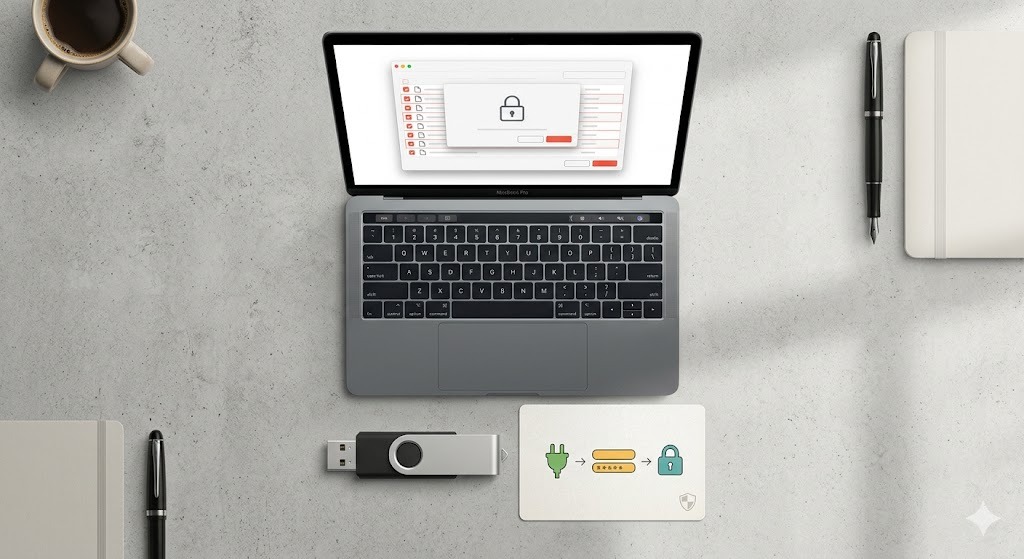
No, not as a genuine FIDO2 security key. A regular USB flash drive is storage. A hardware security key contains purpose-built cryptographic hardware and implements authentication protocols such as FIDO2 and WebAuthn.

You may store an encrypted recovery file, certificate, or emergency document on a normal flash drive, but that does not give it phishing-resistant challenge-response authentication. Software that treats possession of a removable file as a login factor has a different threat model and may be copyable.
How to create a security key USB for Microsoft
- Buy a FIDO2-compatible USB or NFC security key from a reputable vendor.
- Open the Microsoft account or work-account security settings.
- Choose to add a security key and insert or tap the device when prompted.
- Create the key PIN, touch the key if required, and name it clearly.
- Register a second key or another recovery method and store it separately.
connector,
not a guarantee
| Question | Safe answer | What to do instead |
|---|---|---|
| Can I use a regular USB as a security key? | No, not for FIDO2 or WebAuthn. | Buy a compatible hardware key. |
| Can any USB be used as a security key? | No. The device must implement the required authentication protocol. | Check the account's supported key standards. |
| Can I turn a USB drive into a security key? | Not into equivalent secure hardware through formatting or a simple app. | Use it only for an encrypted recovery file. |
| Insert your security key into the USB port | This prompt expects a registered hardware key, not a storage drive. | Insert the enrolled key, use NFC, or choose another verified sign-in method. |
| What is a USB security key Bank of America? | Bank-specific terminology and support can change. | Follow the bank's authenticated security settings and official support. |
Troubleshooting Credential Manager & Keychain Security
Mac keeps asking for the keychain password
Can't turn on iCloud Passwords and Keychain
Windows keeps using an old network password
Remote Desktop says your credentials did not work
Chrome wants to access Chrome Safe Storage
Android says a security policy restricts clearing app data
A site keeps asking to insert a security key
How to recover access to a locked account
Keep live credentials in a keychain. Keep sensitive recovery documents in a separate encrypted vault.
Apple Keychain, Android Credential Manager, Windows Credential Manager, passkeys, and dedicated password managers are designed for everyday sign-in. Recovery-code files, identity scans, exported vault backups, account inventories, and succession instructions need a different kind of protection.
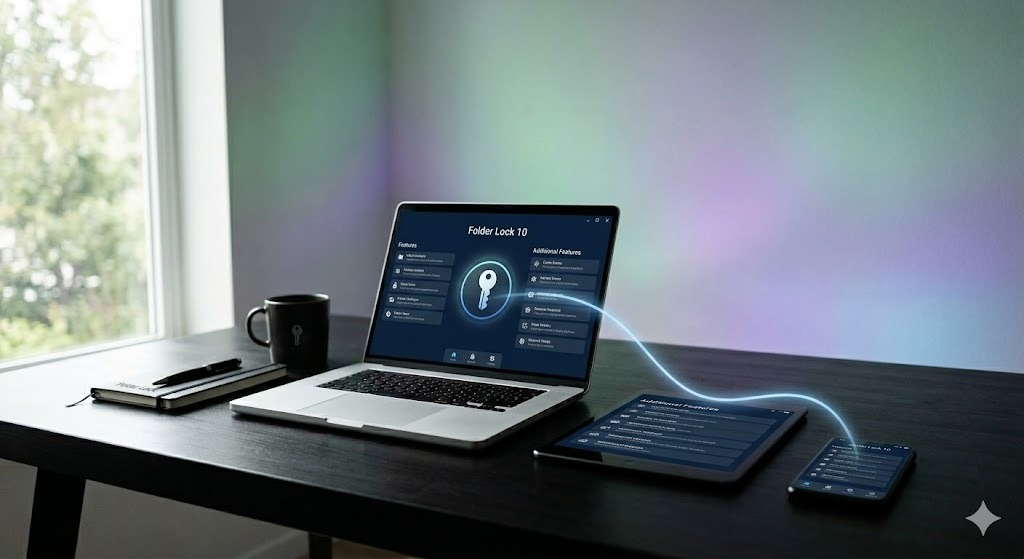
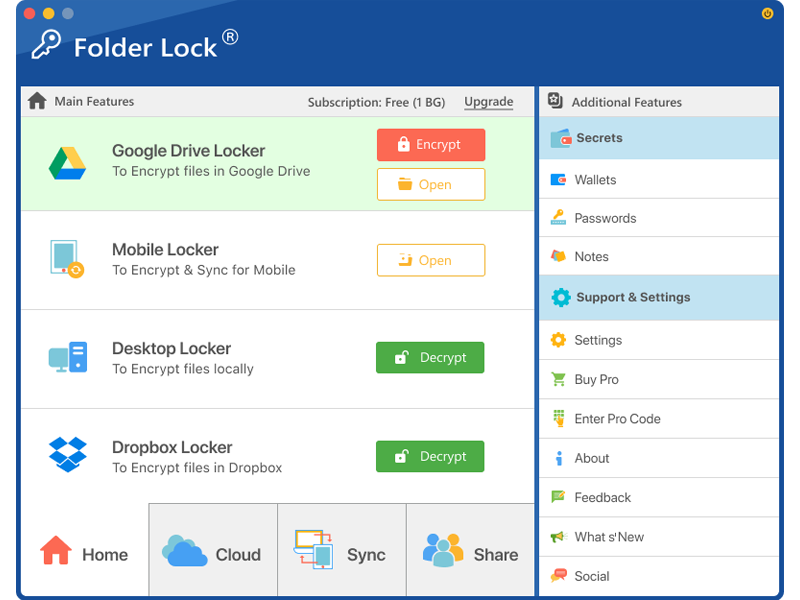
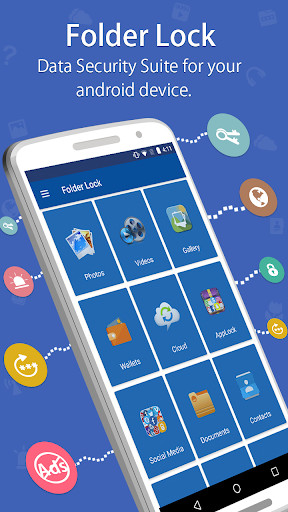
Folder Lock 10 from NewSoftwares.net adds encrypted file lockers across its desktop and mobile product family. Windows has the broadest toolset, while macOS 13 or later focuses on encrypted lockers, cloud synchronization, sharing, and protected records. The Android and iOS apps provide private spaces for files, media, notes, and wallet-style information.
Folder Lock can hold an encrypted record of a password or recovery instruction, but it should not replace a credential manager that creates unique passwords, fills them into verified sites, stores passkeys, or checks for compromised logins.

Local encrypted files
Encrypted synchronized copy
Private records on the go
Separate from active logins
Where Folder Lock 10 fits, and where it does not

Encrypted lockers for recovery documents and private files
Folder Lock uses AES-256 encryption for locker-based storage. A locker is a practical place for account-recovery PDFs, identity records, encrypted exports, business continuity instructions, and other files that should remain unreadable outside an authorized session.
Best for: selected high-value files. Not ideal for: replacing browser autofill, passkey storage, or a dedicated password manager.
Local and cloud lockers across supported devices
The product family supports a local desktop locker and encrypted workflows built around Dropbox, Google Drive, and OneDrive. Linked apps can make protected files available on other authorized devices, but synchronization is not the same as an independent backup.
Best for: controlled access from more than one personal device. Not ideal for: organizations that require full identity governance, centralized key custody, or managed offboarding.
Encrypted records for passwords, notes, and wallet information
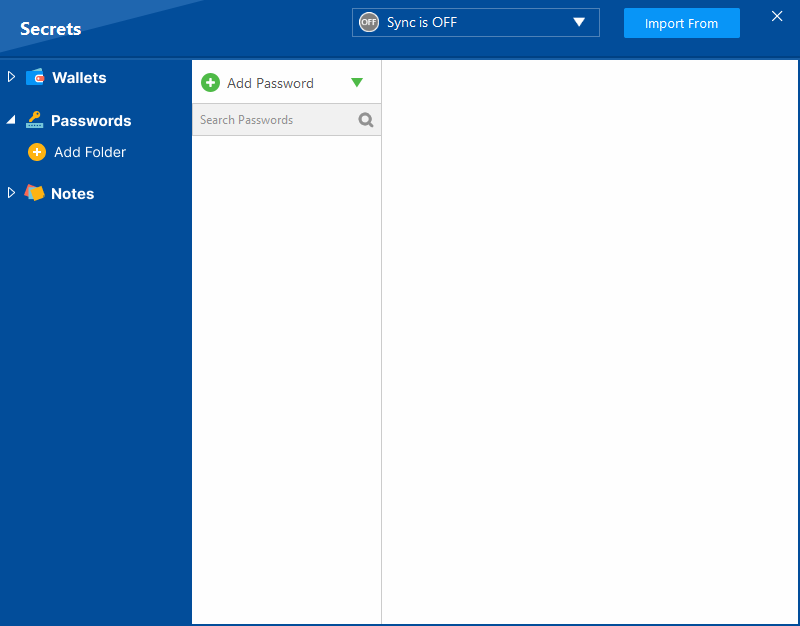
The Secrets area can store private notes, financial details, and password records inside an encrypted space. That can help with emergency documentation, but it does not provide the complete workflow of a modern credential manager, such as domain-aware autofill, passkey management, password generation, and breach alerts.
Best for: static confidential records. Not ideal for: daily sign-in across many websites and apps.
The Windows edition has the widest protection toolkit
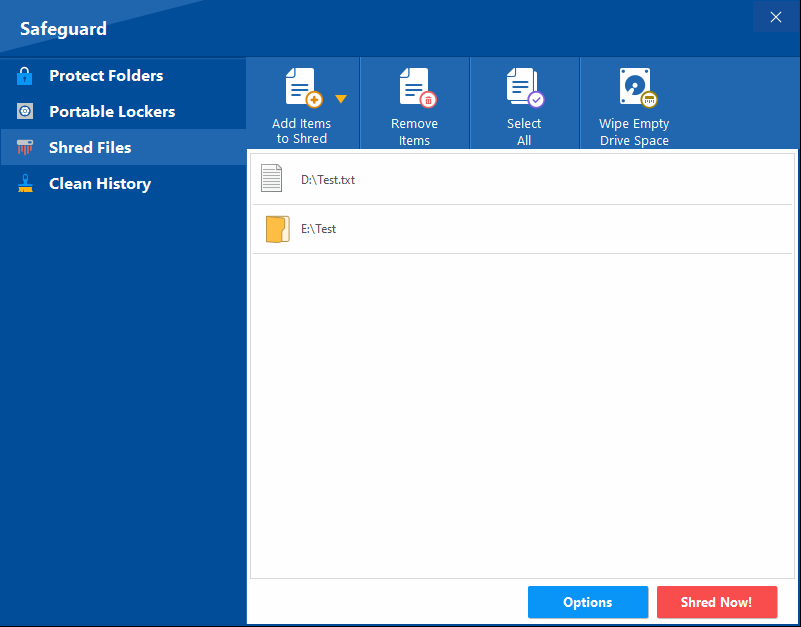
Windows users can combine encrypted lockers with lock-and-hide controls, portable locker workflows, secure deletion tools, and privacy-trace cleanup. These extras are useful around shared PCs and removable storage, but encryption remains the better choice when files may leave the protected Windows installation.
Best for: a Windows-centered recovery archive. Not ideal for: assuming every desktop feature is also present on macOS or mobile.
Android and iOS focus on private mobile content
Both mobile editions cover protected media, documents, audio, notes, wallet-style records, cloud backup, access-attempt monitoring, and private browsing. Android also includes app-locking functions, while iOS includes local Wi-Fi transfer tools.
Important: back up or export needed content before removing a mobile app. Locally held app data can be lost when the app is deleted.
Platform differences, recovery, and ordinary USB drives
macOS 13 or later supports the locker, synchronization, sharing, and Secrets workflows, but it does not include the Windows Safeguard module. A normal USB drive can carry an encrypted locker, yet it still cannot act as a genuine FIDO2 security key.
Keep a separate tested backup, record which account owns synchronized lockers, and verify that a trusted person can follow your recovery instructions without receiving every authentication factor in one place.
Folder Lock 10 platform support and feature differences
The product name spans several operating systems, but the editions are not identical. Choose the edition by the files you need to protect and the recovery path you can realistically maintain.
| Platform | Primary role | Notable capabilities | Important limitation | Best fit on this page |
|---|---|---|---|---|
| Windows | Full desktop security suite | Encrypted local and cloud lockers, sharing, protected records, portable lockers, folder locking, shredding, and history cleanup | File protection does not replace credential autofill, passkeys, or phishing-resistant MFA | Main workstation for an encrypted recovery archive |
| macOS 13+ | Encrypted locker and synchronization client | Local and cloud lockers, sharing, cross-device access, notes, passwords, and wallet-style records | The Windows Safeguard functions are not included | Encrypted recovery files within an Apple and mixed-device setup |
| Android | Private mobile vault | Protected media and documents, notes, wallets, cloud backup, access-attempt logging, app locking, and private browsing | Mobile permissions and feature availability depend on the device and Android version | Mobile access to selected protected records, not a replacement for Android Credential Manager |
| iOS and iPadOS | Private mobile vault | Protected media and files, notes, wallets, cloud backup, access-attempt monitoring, Wi-Fi transfer, and private browsing | Deleting the app can remove locally stored content, so backup must come first | Mobile recovery documents alongside, not instead of, Apple Passwords and Keychain |
Folder Lock, Folder Protect, and Folder Lock Lite solve different problems
Folder Lock 10: encryption and recovery-file storage
Choose Folder Lock when confidentiality is the priority and the protected files may be copied, synchronized, backed up, or carried between devices. Its encrypted locker model is the best fit for the recovery documents discussed in this guide.
Use it for: encrypted archives, protected exports, private notes, and portable encrypted copies.
Folder Protect: Windows access rules without a locker workflow
Folder Protect is a Windows access-control tool. It can deny opening, hide an item, block changes, or prevent deletion for selected files, folders, drives, programs, and filename patterns. It also offers automatic re-protection, Safe Mode coverage, and an optional stealth interface.
Use it for: controlling how people use files on the same Windows system. Do not treat it as: a substitute for encryption when the storage device itself may be removed or copied.
Folder Lock 7 Lite: legacy folder locking only
The Lite edition is a reduced legacy product centered on locking folders. The supplied product material explicitly separates it from editions that include encryption.
Use it for: limited local access control on an older supported setup. Not recommended for: a new high-value recovery archive.
Credential managers: still the correct home for active logins
Use Apple Passwords and Keychain, Android Credential Manager, Windows-integrated storage, or a dedicated password manager for passwords and passkeys used every day. Use file-protection products for documents around those accounts.
Use them together: credential vault for authentication, encrypted file vault for recovery material, and a separate backup key or recovery route.
Credential storage methods compared
| Method | Difficulty | Security | Cost | Best for | Limitations |
|---|---|---|---|---|---|
| Native OS credential store | Easy | Strong on secured devices | Included | Platform-integrated logins and keys | Limited cross-platform administration |
| Browser password storage | Easy | Good with strong sync-account protection | Included | Convenient web sign-in | Closely tied to browser and profile security |
| Dedicated password manager | Moderate | Strong with unique master passphrase and MFA | Free or paid | Cross-platform passwords, passkeys, sharing | Recovery and provider security must be understood |
| Passkey provider | Easy after setup | High phishing resistance | Usually included | Supported account sign-in | Availability and recovery vary |
| FIDO2 hardware key | Moderate | High phishing resistance | Hardware purchase | Critical and administrator accounts | Needs a backup key or recovery method |
| Encrypted file locker | Moderate | Strong for files at rest | Free or paid | Recovery documents and sensitive records | Not an active password or passkey provider |
| Best combined approach | Native credential store + dedicated password manager or passkey provider + strong MFA + encrypted recovery records + tested backup. | ||||
How to build a safer credential storage setup
Secure every device that can unlock credentials
Use a strong PIN or password, automatic locking, supported software, full-disk encryption, and remote-lost-device controls.
Review the native credential store
Remove obsolete targets, unknown entries, retired certificates, and old trusted devices. Do not delete items you cannot identify until you document and verify them.
Set up a cross-platform manager when needed
Use a unique master passphrase, strongest available MFA, secure device approval, and a tested export and recovery process.
Replace reused passwords
Prioritize email, financial accounts, cloud storage, social media, domains, remote administration, and shared business services.
Add passkeys or hardware keys
Register phishing-resistant methods on critical accounts. Label keys and store the backup separately.
Encrypt the recovery package
Create a file containing account inventory and recovery instructions, not every live secret. Protect it with Folder Lock 10 or another suitable encrypted container. Test the restore process on every device you expect to use, and keep an independent backup outside the synchronized locker.
Protection layers and security architecture
A credential store may tie decryption or key use to the device account, hardware security, screen lock, or biometric-gated authorization. This reduces casual extraction but cannot guarantee safety on a fully compromised unlocked device.
End-to-end encryption means the synchronization provider does not possess the keys needed to read protected content. Recovery design matters because a provider may be unable to restore data if all trusted recovery paths are lost.
The private key remains in a credential provider or hardware authenticator and signs a challenge for the legitimate service. The service stores the public key and does not receive the private key.
An encrypted file container protects selected data at rest and may be copied to other storage. Its security depends on the encryption implementation, password, unlocked-session handling, backups, and where the recovery secret is kept.
Organizations should use individual identities, least privilege, managed device posture, phishing-resistant MFA, role-based access, logging, and documented offboarding. Consumer vault sharing is not a substitute for full identity governance.
Compare the free allowance with the full product before moving important files
Free edition
The free option is suitable for evaluating the interface, testing encryption and restoration, and confirming that your devices can open the same protected material. Keep an independent backup during testing.
Download free →Folder Lock 10 Pro
The supplied plan comparison expands locker capacity, supports up to five synchronized devices, enables sharing, and adds paid desktop functions such as portable lockers and folder protection. Exact features differ by operating system.
View full version pricing →Folder Protect
Consider Folder Protect when the goal is to hide items or restrict opening, editing, and deletion on a Windows PC. Choose encryption instead when the files must remain confidential after copying or device loss.
Review Folder Protect →Password hygiene for households and small businesses
Give each person an individual account
Shared passwords erase accountability and make offboarding difficult. Use delegated access, family vaults, or team collections instead.
Protect the primary email account first
Email resets many other accounts. Add a passkey or strong MFA, review forwarding rules, and remove stale recovery methods.
Create an emergency access plan
Document who may access which accounts, under what conditions, and where recovery materials are stored. Do not reveal every secret in the instructions.
Audit quarterly and after staffing changes
Remove old users, shared links, trusted devices, API tokens, app passwords, browser profiles, and credentials for retired services.
Test encrypted offsite backups
Keep at least one backup outside the primary device and location. Verify restoration, key availability, and retention without exposing plaintext copies.
Contain the account before cleaning up the device
- Use a trusted device and the service's official address.
- Change the compromised password to a unique one, or replace it with a passkey.
- Sign out other sessions and revoke unknown devices, app passwords, tokens, and connected apps.
- Review recovery methods, forwarding rules, payment details, and security alerts.
- Change any reused password on other services.
- Scan and update affected devices, but do not delay account containment while waiting for a perfect forensic answer.
- For business accounts, preserve logs and notify the responsible security or privacy contact.
What the standards say: NIST SP 800-63
Password storage
NIST requires verifiers to store passwords in a form resistant to offline attacks, using salts and a suitable password-hashing scheme with a cost factor. The purpose is to make each stolen-database guess expensive.
Password screening
Organizations should reject commonly used, expected, or compromised passwords rather than relying on arbitrary complexity rules alone.
Authentication assurance
Choose authentication based on risk. Administrator and high-impact access should favor phishing-resistant methods and managed recovery.
Operational controls
Pair credential policy with least privilege, endpoint management, logging, secure help-desk verification, access reviews, and timely offboarding.
Four practical security patterns
Home user with Apple and Windows devices
Uses iCloud Keychain for Apple passkeys, a cross-platform password manager for shared logins, Windows Credential Manager for local integrations, and an encrypted offline file for recovery records.
Small office with remote access
Issues individual accounts, uses strong MFA, applies Remote Credential Guard where supported, stores emergency procedures in an encrypted administrative vault, and reviews access after every role change.
Frequent traveler
Uses passkeys and a hardware key, keeps a backup key in a separate secure location, avoids saving credentials on borrowed devices, and carries only the minimum recovery information needed.
Family continuity plan
Uses a family password manager with individual accounts, documents emergency access, prints or encrypts recovery instructions, and rehearses how a trusted person would recover critical services.
A decision guide by security need
| Your need | Recommended method | Where Folder Lock fits | Important alternative or limitation |
|---|---|---|---|
| Save and fill active passwords | Native credential store or dedicated password manager | Optional encrypted emergency record only | Folder Lock is not a domain-aware autofill or passkey provider |
| Protect recovery-code files across Windows, Mac, and mobile | Encrypted locker plus tested synchronization and backup | Strong fit when each required platform has been tested | Features vary by operating system, and cloud sync is not your only backup |
| Encrypt a recovery archive on Windows | Folder Lock desktop or another audited encrypted container | Full Windows feature set includes local, cloud, and portable lockers | Keep the locker password and one restoration method separately |
| Encrypt private files on macOS | Folder Lock for macOS 13+ or another encrypted container | Supports lockers, cloud integration, sharing, and protected records | No Windows Safeguard module on Mac |
| Prevent people from opening, editing, or deleting local Windows files | Folder Protect or Windows access controls | Folder Protect offers fine-grained local access rules | Access control is not the same as encrypting copied data |
| Carry protected recovery files on a USB drive | Encrypted portable locker or full-drive encryption | Folder Lock portable storage may fit | The USB drive does not become a FIDO2 authentication key |
| Protect administrator accounts from phishing | Passkeys or genuine FIDO2 hardware keys | No direct role | Register a backup key and documented account recovery route |
Related tools you might find useful
These tools are developed by NewSoftwares.net, the same team behind Folder Lock 10. Select the narrowest tool that solves the actual risk rather than layering overlapping products without a recovery plan.

USB Secure
Designed to password-protect data carried on USB and external drives. It protects stored files but does not turn ordinary removable storage into a cryptographic sign-in key.
Learn about USB Secure →Folder Protect
A Windows access-control product for files, folders, drives, programs, and filename patterns. It can hide items or restrict opening, modification, and deletion, with automatic protection and Safe Mode support.
Learn about Folder Protect →USB Block
Controls unauthorized USB and removable-device access on Windows endpoints. This addresses device use and data-transfer policy rather than encrypting a recovery archive.
Learn about USB Block →Cloud Secure
Adds local locking controls around supported synchronized cloud folders. Compare its access-control purpose with Folder Lock's encrypted locker workflow before choosing.
Learn about Cloud Secure →Credential storage, recovery, passkey, and USB key FAQs
Credential managers and keychains are protected operating-system services that store sign-in secrets, passkeys, certificates, and related keys so apps do not need to keep them in plain text. Security still depends on device protection, account recovery settings, software updates, and careful approval of access prompts.
The operating system encrypts stored items and releases them only after an approved app request, user authentication, or both. The exact protection model differs by platform, but the goal is to bind access to your device account, screen lock, hardware-backed keys, or another trusted factor.
It is generally safer than saving passwords in notes, spreadsheets, email drafts, or unencrypted files. It is not a substitute for a strong device passcode, unique account passwords, multi-factor authentication, recovery codes, and prompt software updates.
Use the native store for device and app credentials, a reputable password manager for cross-platform account passwords, passkeys where supported, and a genuine FIDO2 security key for high-value accounts. Encrypt separate files that contain recovery codes or sensitive records.
Avoid approving unexpected keychain prompts, reusing one master password, storing recovery codes beside the device they recover, turning off the device lock, and treating a normal USB flash drive as a hardware authentication key.
For a password you must remember, favor a long, unique passphrase. Length matters more than forced symbol substitutions. A password manager can generate longer random passwords for sites you do not need to type manually.
A well-maintained password manager is usually safer than password reuse or improvised storage. Choose one with strong encryption, transparent security documentation, multi-factor authentication, reliable export and recovery options, and a clear update history.
Two-factor authentication uses exactly two different factor types. Multi-factor authentication is the broader term for two or more factors. A password plus an authenticator app is 2FA and also MFA.
Use the service’s official recovery flow, a trusted signed-in device, recovery codes, a recovery email or phone, or verified support. Do not use password-dumping tools or bypass instructions. After recovery, review active sessions and replace reused passwords.
A passkey uses public-key cryptography. The service stores a public key while the private key remains with your device, password manager, or security key. You unlock it with a device PIN or biometric, and it resists ordinary phishing because it is bound to the real site or app.
No. Reuse turns one breach into access attempts against many accounts. Use a unique password or passkey for every important service and let a password manager remember them.
Credential stuffing is an automated attack that tries usernames and passwords leaked from one service on other services. Unique passwords, passkeys, MFA, breach monitoring, and rate limiting reduce the risk.
Attackers may guess common passwords, reuse leaked credentials, trick users through phishing, steal active sessions, or run offline guesses against stolen password hashes. Long unique passwords and phishing-resistant authentication address different parts of that problem.
A password hash is a one-way derived value used by a service to verify a password without storing the original password. Secure systems add a unique salt and use a deliberately expensive password-hashing algorithm so each offline guess costs more.
Biometrics are convenient and can strongly protect a device-bound credential, but they are usually an unlock mechanism rather than a remote secret sent to a website. Keep a strong device PIN and recovery method because biometrics can fail or change.
A USB security key is purpose-built hardware that performs cryptographic authentication, commonly using FIDO2 or WebAuthn. It is not the same as a flash drive that stores files.
Not as a genuine FIDO2 or WebAuthn security key. A normal flash drive lacks the secure hardware and protocol implementation required for phishing-resistant authentication. It can store an encrypted recovery file, but that is a different use.
Buy a compatible FIDO2 security key, register it in the account’s security settings, set its PIN when prompted, and add a backup key or recovery method. Windows can manage supported keys but cannot turn an ordinary flash drive into FIDO2 hardware.
Saved Remote Desktop credentials are handled through Windows credential protections, but risk depends on device security, policy, malware exposure, and the remote environment. Managed environments should use current Windows controls such as Credential Guard or Remote Credential Guard where appropriate.
Minimize what you collect, encrypt data in transit and at rest, separate encryption keys from the data, restrict access by role, log access, define retention limits, test encrypted backups, and document deletion and incident-response procedures.
Folder Lock can keep password records, private notes, and wallet-style information inside an encrypted area, but it is not a complete replacement for a modern credential manager. Use a dedicated password manager or native keychain for password generation, verified-site autofill, passkeys, breach alerts, and routine sign-in. Use Folder Lock for encrypted recovery records and other sensitive files.
Yes, the product family has editions for Windows, macOS, Android, and iOS. The feature set is not identical. Windows has the broadest file-protection tools, macOS 13 or later focuses on encrypted lockers and synchronization without the Windows Safeguard module, and the mobile apps focus on private files, media, notes, and wallet-style records.
Deleting the iOS app can remove content stored locally inside it. Before uninstalling, confirm that every needed file has been exported, synchronized, or backed up and that you can restore it from another device. Do not assume an app-store reinstall will recreate data that existed only on the removed device.
Folder Lock is the better fit when you need encrypted lockers, portable protected copies, cloud-linked storage, or cross-device access. Folder Protect is a Windows access-control product that can hide items or restrict opening, modification, and deletion. Choose encryption when confidentiality must survive copying or device loss, and choose access controls when the main risk is local use on the same Windows system.
In-depth answers and official references
FTP keychain and stored server passwords
An FTP client may store server credentials in the operating-system keychain or its own encrypted store. Prefer SFTP or another securely configured protocol over unencrypted FTP. Review saved hosts, remove old credentials, and avoid embedding passwords in scripts or connection files.
Gmail keychain and Google Chrome keychain password
Google Account credentials may be saved by a browser or operating-system credential provider. Protect the Google Account with a passkey or strong MFA, review signed-in devices, and treat unexpected Keychain prompts as a reason to verify the requesting app.
How to ensure backups are securely stored offsite and encrypted
Encrypt before transfer, separate backup credentials from production credentials, retain more than one generation, restrict deletion rights, and regularly restore a sample. An unreadable encrypted backup is not a successful backup.
“This is encrypted and never stored on your device” camera prompts
A privacy sentence is not proof. Verify the app, publisher, reason for camera access, retention policy, and whether processing occurs locally or remotely. Deny access when the feature does not need the camera, especially after following an unsolicited identity-verification link.
Primary sources used for this guide
Use the native credential vault for sign-in and an encrypted file vault for recovery material
Apple Keychain, Android Credential Manager, Windows Credential Manager, passkeys, and dedicated password managers should remain the primary tools for active authentication. They understand accounts, sites, applications, passkeys, and device approval in a way that a general encrypted file vault does not.
Folder Lock 10 is a stronger fit for the documents around those accounts. Windows provides the fullest locker and file-protection toolkit. macOS 13 or later supports encrypted lockers, synchronization, sharing, and protected records without the Windows Safeguard module. Android and iOS extend selected protected content to mobile devices, but local mobile data must be backed up before an app is removed.
Use Folder Protect instead when your concern is controlling local Windows access without building an encrypted locker. Whichever product you choose, maintain a separate verified backup and never store the vault password, recovery code, and only copy of the protected files together.